Optional human verification
Connect a CAPTCHA service
Add a human check to your forms using your own Turnstile, reCAPTCHA or hCaptcha account.
In WordPress: Settings → Gate House → Provider
Choose your provider
Select Cloudflare Turnstile, Google reCAPTCHA v2 checkbox, reCAPTCHA v3 or hCaptcha. The on-screen guide links to your provider and explains which keys to create.
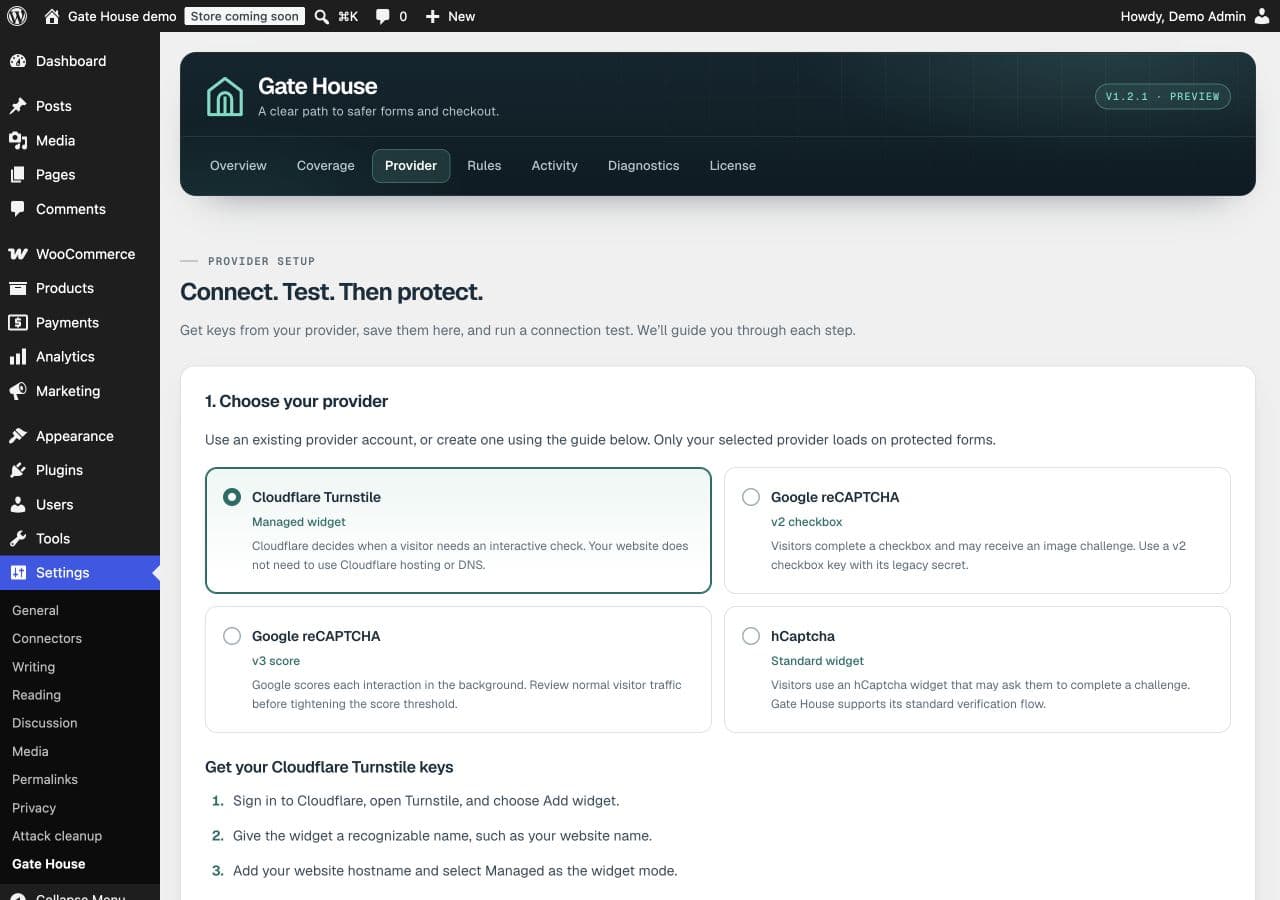
Choose one service. Gate House shows the setup instructions for that choice.Open full-size image (opens in a new tab) Save your matching keys
Register the exact hostname that serves your forms, such as
shop.example.com. Copy the matching site key and secret key into Gate House, then choose Save your keys.The site key is public. The secret key belongs on your server; don’t include it in screenshots or support messages.
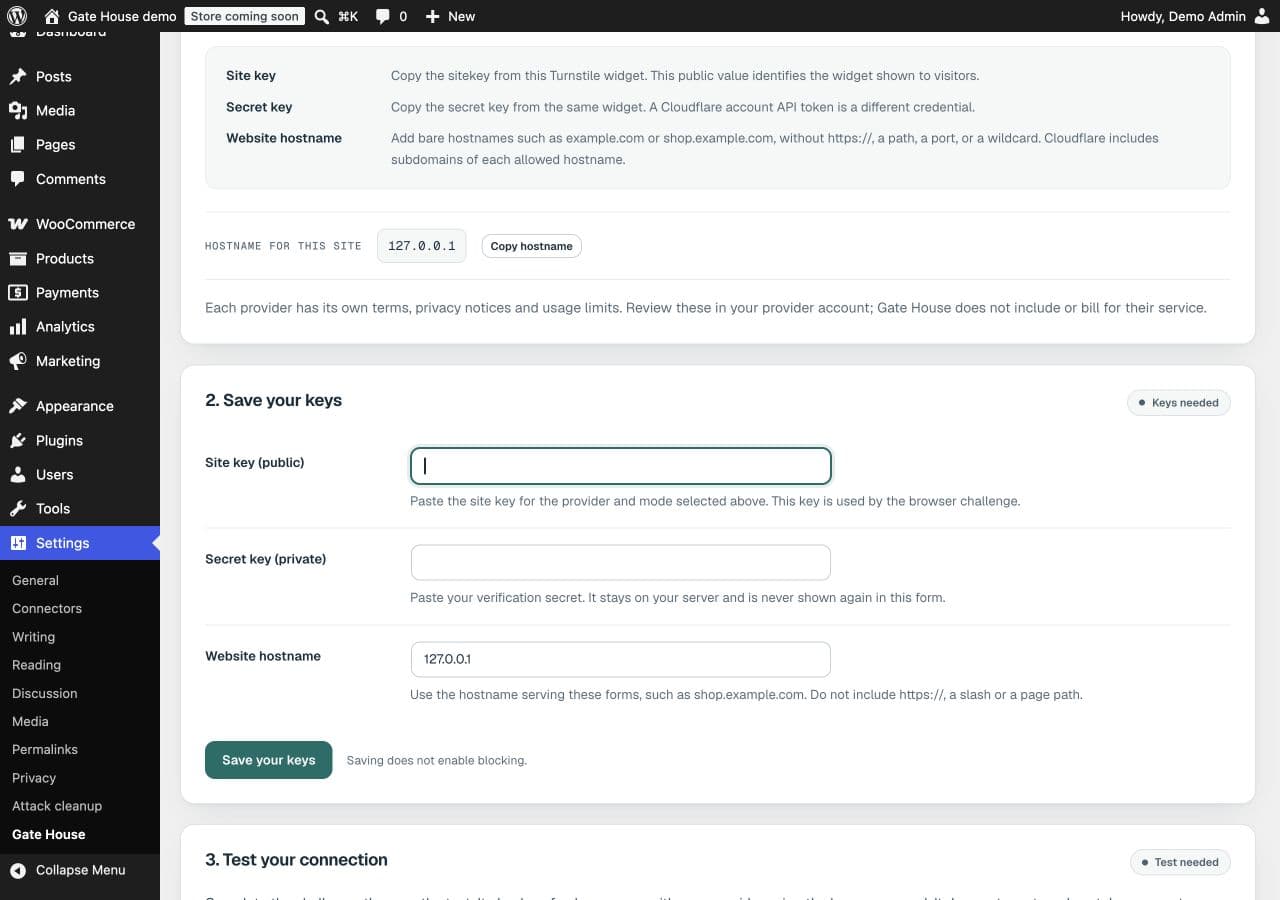
Use the matching keys from your provider. Both fields are empty in this example.Open full-size image (opens in a new tab) Test the connection, then choose your forms
In Test your connection, complete the provider’s challenge and run the connection test. It verifies a fresh challenge from your server. It doesn’t create orders, take payments, send customer email or change stock.
After the test passes, open Rules, choose the forms that should Require a human check, and save. Test those forms on staging before applying the settings to your live site.
Connection test not passing?
- Check that the provider, key type and hostname match.
- Save your latest changes before trying the test again.
- For reCAPTCHA, use keys that work with SiteVerify, not a Google Cloud API key.
- Check whether your host, firewall or content policy prevents the challenge or verification request.